TradersLink
Trading Journal Daily Trade Tracker Trade Analyzer Trade Analytics
Help Log in Sign up free

TradersLink Trading Journal

A trading journal for the whole trading day.

Keep the trades, rules, notes, tags, and session context that explain how the day actually unfolded.

Review the week, open any trading day, and stay close to the details you want to repeat, change, or understand better.

Sign up free

No credit card required.

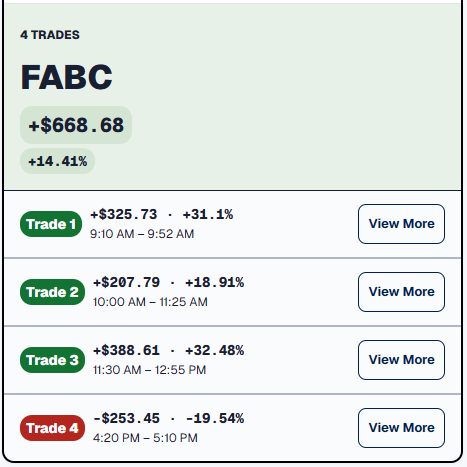
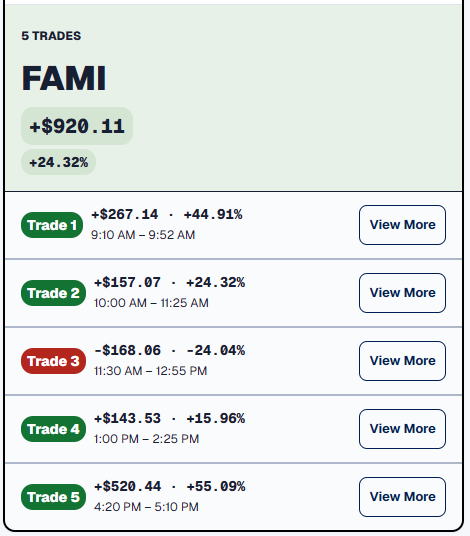
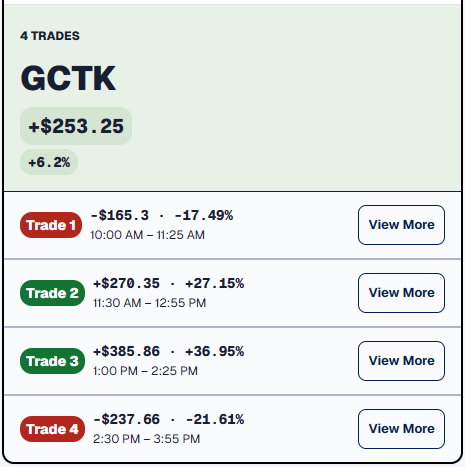
Closed FABC ticker card with four completed trades Closed FAMI ticker card with five completed trades Closed GCTK ticker card with four completed trades

Trading Calendar

See the week. Open the story behind any day.

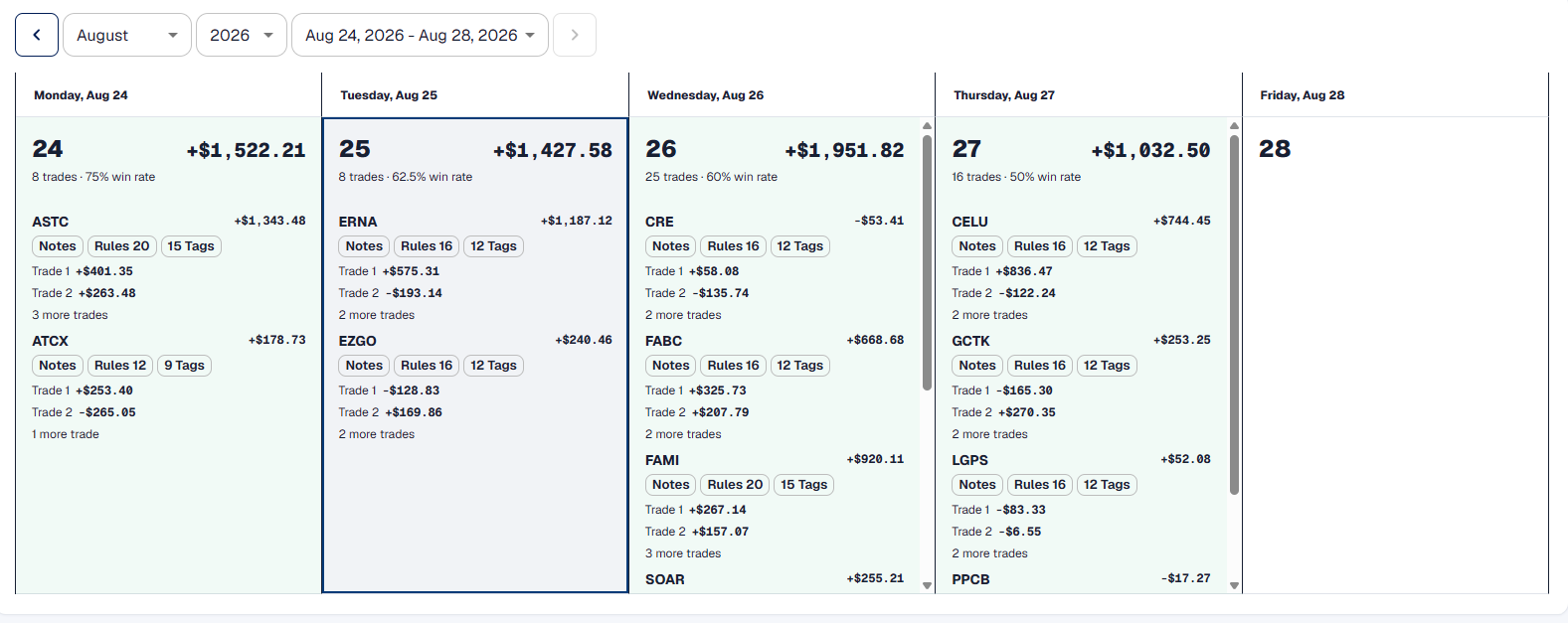
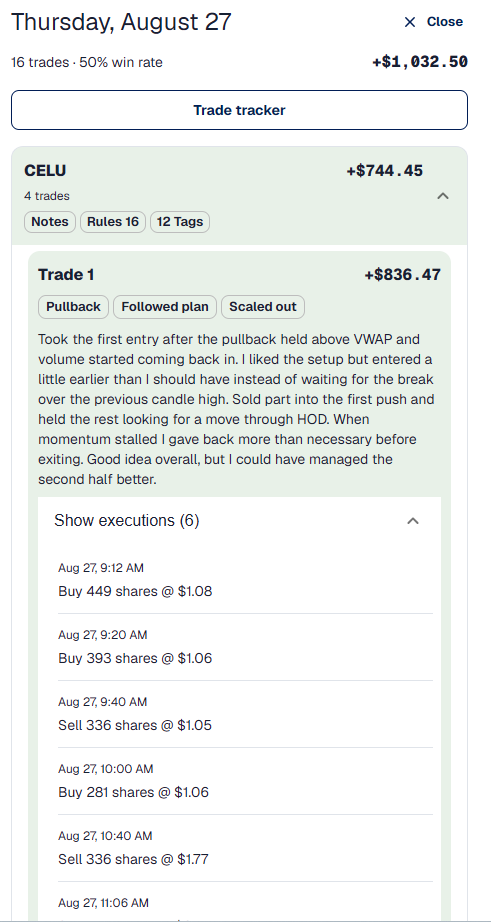
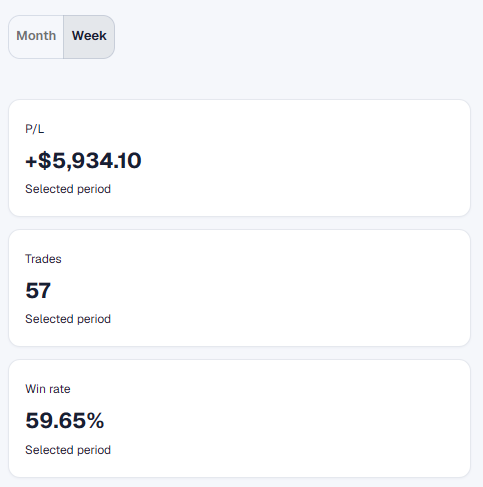
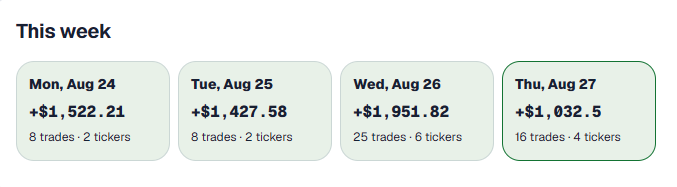
The Calendar turns the days you traded into a week you can read. See P&L, trade count, win rate, and the tickers behind each session—then open a day to revisit the trades, tags, notes, and Rule Results behind the total.

Week-view trading calendar with each day's P and L and ticker details Selected Calendar day drawer with its tickers, notes, tags, rules, and executions Weekly summary cards for P and L, trades, and win rate Four Daily Trade Tracker records in a This week row A week you can open, not just total.

Trading Rules

Put your trading rules where the results can answer them.

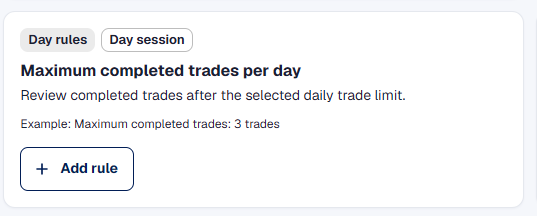
Choose a preset session rule or create your own. TradersLink checks supported rules against the trading day, shows which were followed or broken, and keeps the result beside the trades that produced it.

  1. 01
    Maximum completed trades per day preset with Add rule action

    Choose the rule

    Start with a preset built around a decision you want to keep visible during the session.

  2. 02
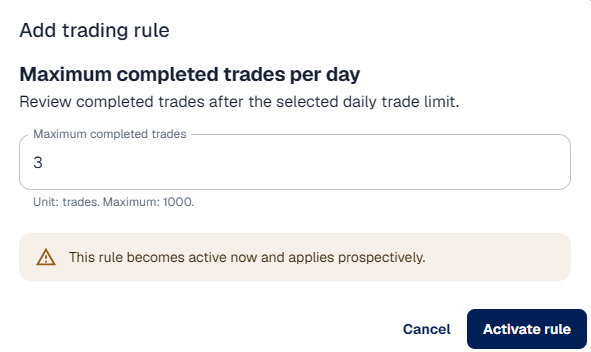
    Configure the maximum completed trades per day limit

    Set your limit

    Make the rule specific to your trading instead of relying on a note you may not revisit.

  3. 03
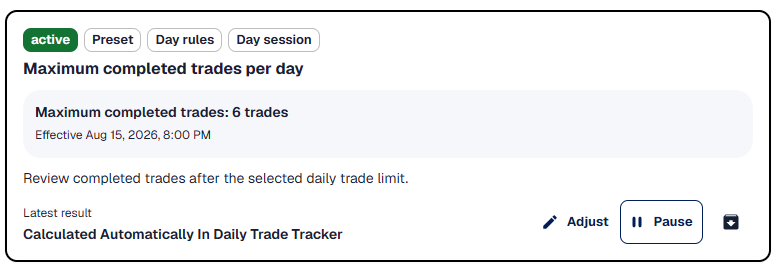
    Active maximum completed trades per day preset rule

    Keep it active

    The selected rule stays part of the Daily Trade Tracker review from that point forward.

  4. 04
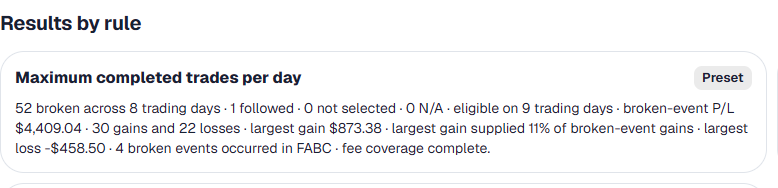
    Results for the maximum completed trades per day rule

    See the result

    Review followed and broken outcomes across trading days, including the P&L connected to them.

Automatic Rule Results

See the trade behind a broken rule.

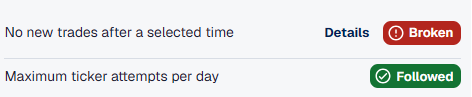
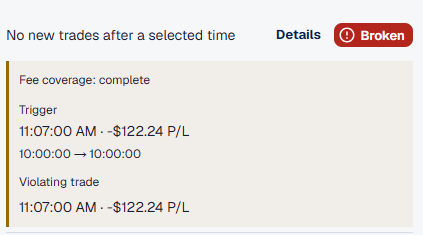
A red result is not where the review ends. Open its details to see when the rule triggered, the trade involved, and the result attached to that event.

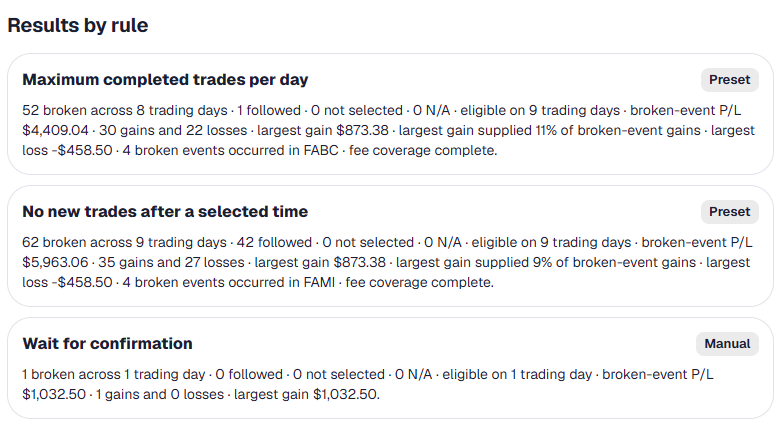
Results by Rule then lets you step back and see whether the same rule is showing up across multiple trading days.

Preset rulesSession rulesFollowedBrokenResults over time
Results by Rule for three trading rules Trading Rule Results showing one broken and one followed rule Expanded broken-rule detail showing its trigger and violating trade

Trade Notes

Keep the reason, the decision, and the lesson with the trade.

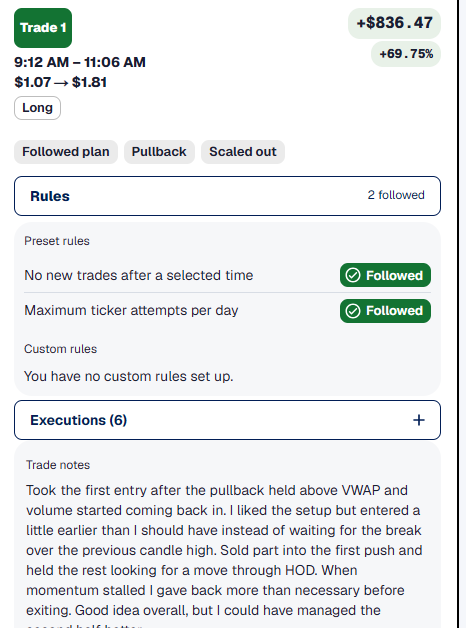
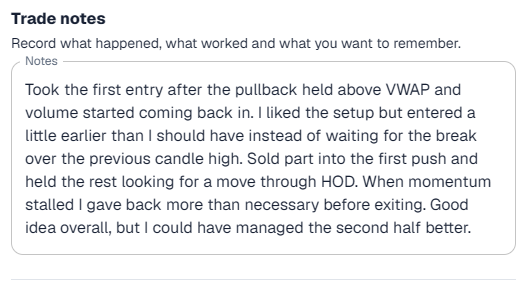
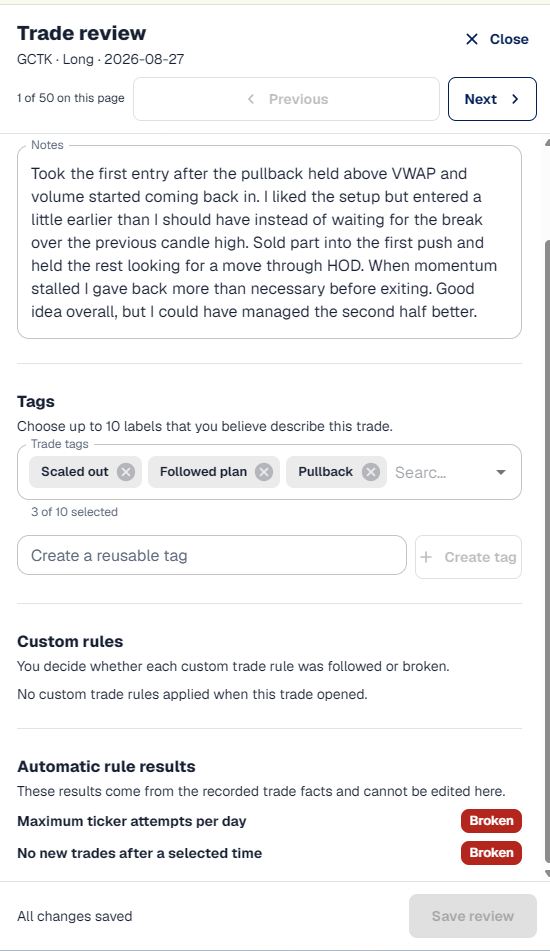
Write down what you saw, why you acted, and what changed while the trade was open. The note stays attached to that trade instead of becoming a separate entry you have to match up later.

When you return to the ticker, its trades and executions are still beside the note. That makes it easier to remember the setup, review a decision in context, and carry a useful lesson into the next session.

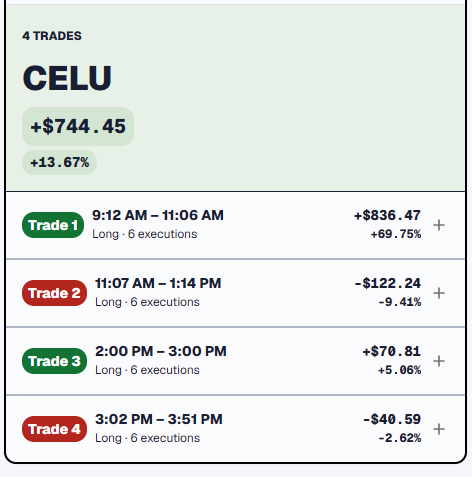
Ticker card showing the trades, notes, tags, and rules attached to one ticker Expanded trade inside its ticker card with notes, tags, rules, and executions A written note attached to a completed trade The note stays with the trade.
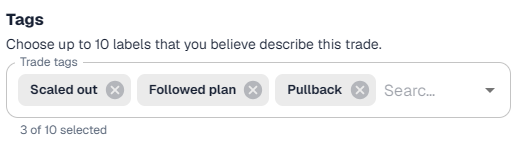
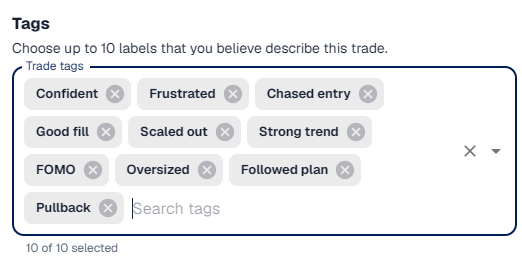
Expanded trade showing where tags are saved with the trade Ticker card containing tagged trades Three selected trade tags Ten trade tags showing different tag categories

Trade Tags

Turn the details you notice into patterns you can study.

Tag the setup you traded, how you entered and exited, the emotion you noticed, or the mistake you want to track. TradersLink keeps those details consistent enough to find again without limiting you to someone else’s vocabulary.

Add custom tags when your process needs its own language. Later, use those tags to filter trades, compare similar situations, and see which behaviours are showing up in Analytics.

  • Setups
  • Execution
  • Exits
  • Emotions
  • Mistakes
  • Custom tags

Ways to Journal

Journal the day or quickly review a single trade

Open a compact review, keep a swing trade plan over several dates, or enter executions directly. Each workflow adds to the same trading record without forcing every trade through the same screen.

01 · Quick review

Review a trade without leaving the list.

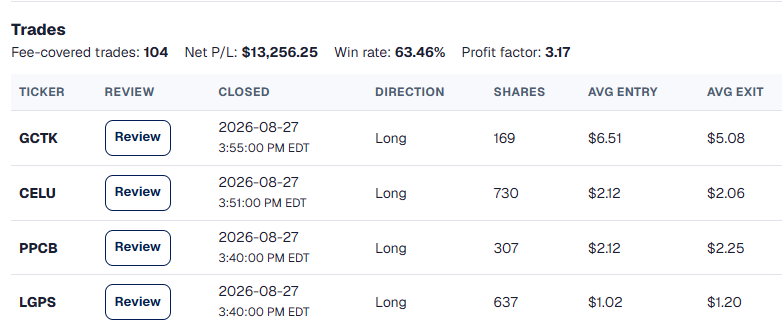
Filter or sort the Trade Explorer, open the review drawer, and add context while the trade you selected is still visible. It is a compact way to journal when you already know which trade needs your attention.

Trade Explorer list with completed trades and filtering controls Compact Trade Explorer review drawer showing one completed trade

02 · Swing trading

Keep the plan alive across trading days.

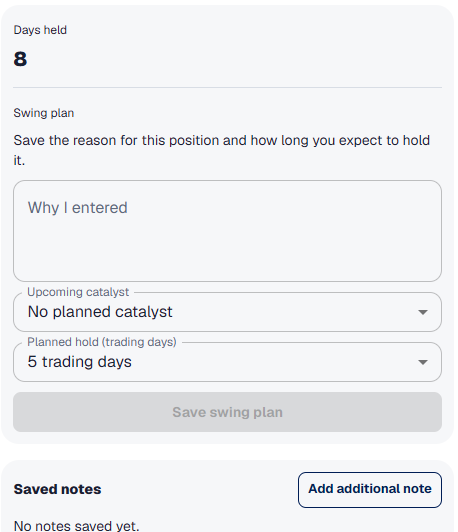
Record the swing trade plan, expected holding period, catalyst, and dated notes as the position develops. The journal keeps the original idea and each later update with the same swing trade.

Swing Trade Tracker card with a trade plan, catalyst, holding period, and dated notes

03 · Execution entry

Enter the fills that make up the trade.

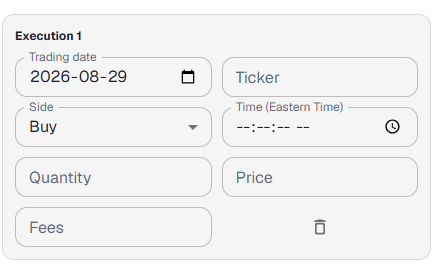
Add a day trade or swing trade execution with the broker-shown date, ticker, side, time, quantity, price, and fees. Accurate fills give later trade matching and analysis the details they need.

Manual execution fields for date, ticker, side, time, quantity, price, and fees

Daily Trade Tracker

Bring the entire trading day together.

The Daily Trade Tracker is the main full-day journaling workflow. It saves the session as one record, with its tickers, trades, notes, tags, Trading Rule Results, and daily totals connected.

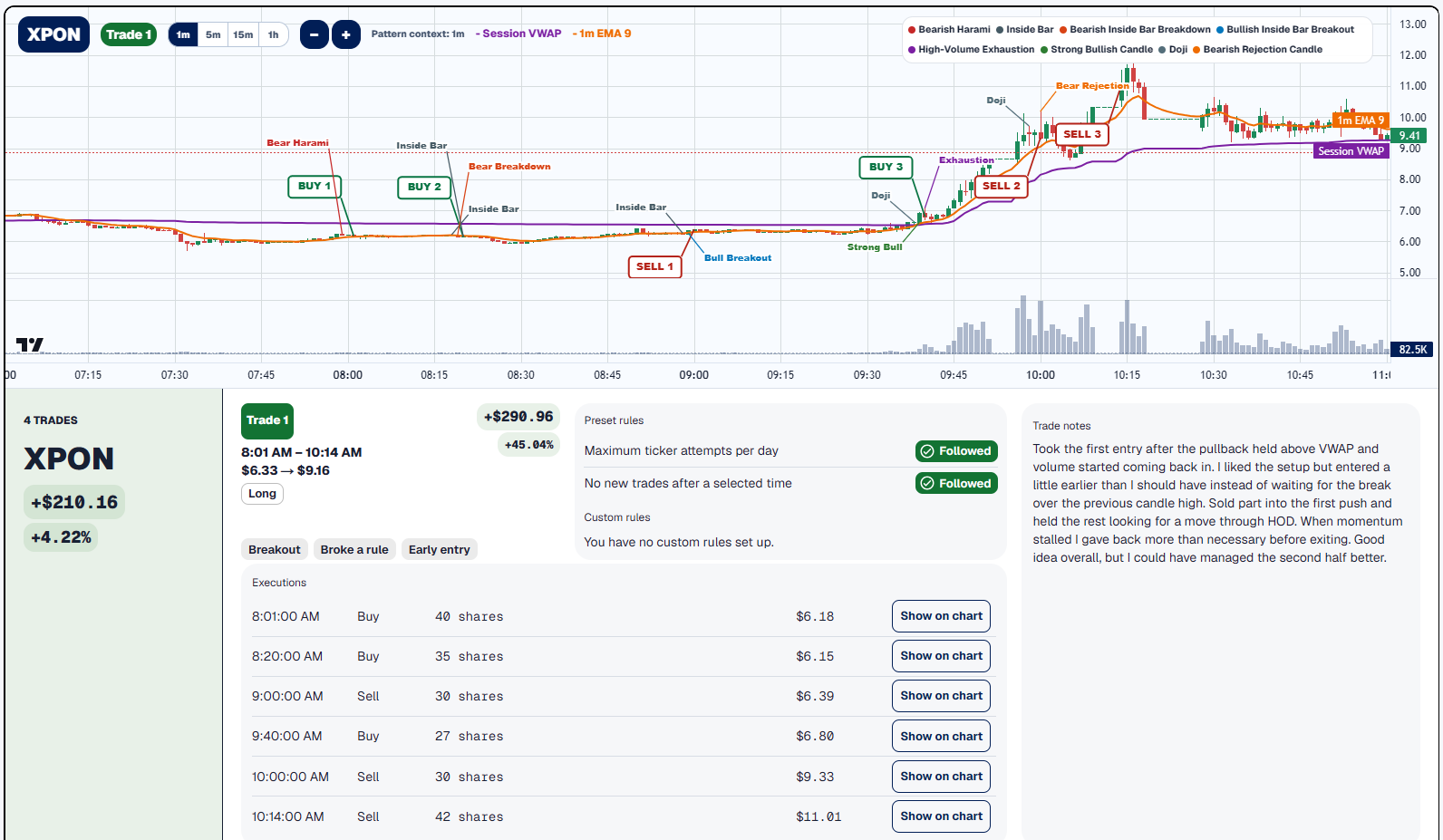
From a trade inside the ticker card, open Trade Analyzer to study entries and exits, candle patterns, profit taking, and risk management while the details of that trading day are still close by.

Completed XPON ticker card with executions, trade details, Trading Rule Results, notes, and the Trade Analyzer chart
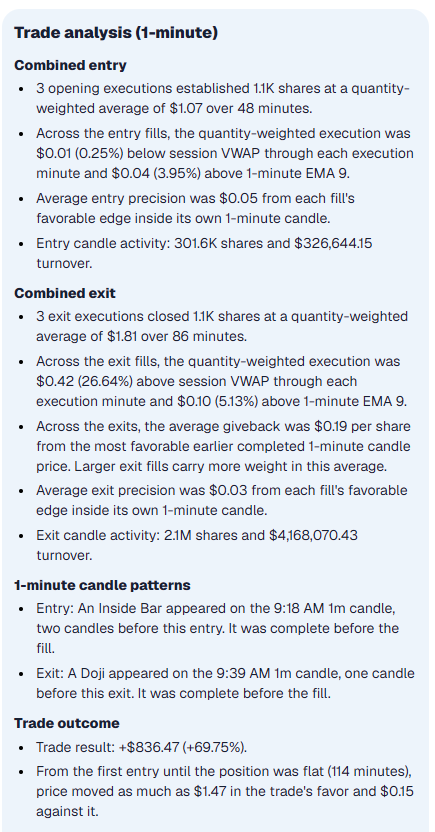
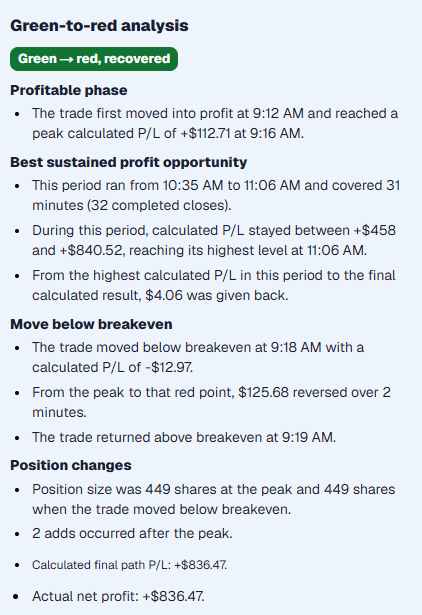
Trade Analyzer Entry and Exit Analysis with detailed execution review Trade Analyzer Green-to-Red Analysis showing profit capture and giveback

Trade Analyzer

Take the completed trade one step further.

Open Entry and Exit Analysis to review where executions occurred inside the trade. Use Green-to-Red Analysis to see the profit that was available, the amount captured, and what was given back before the position closed.

That detail helps make profit taking, entry quality, and risk management easier to discuss with evidence from the trade itself.

Explore the TradersLink Trade Analyzer → Sign up free →

Session Notes

Finish the day with something useful to carry forward.

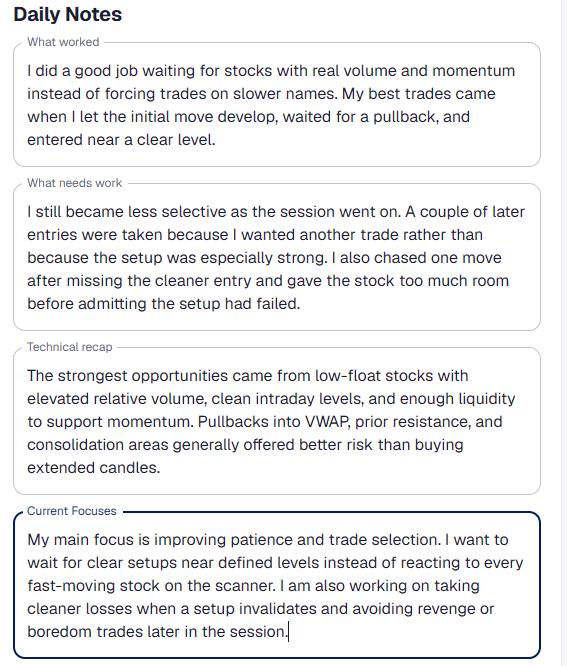
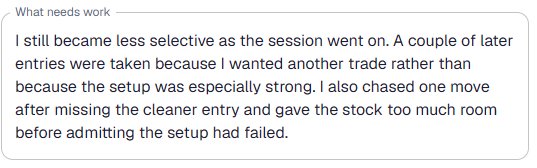
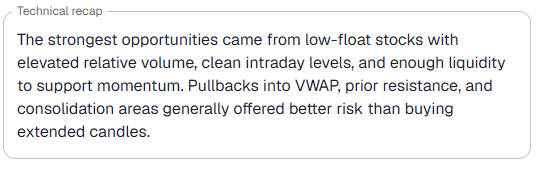
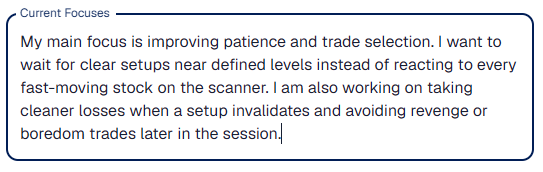
Close the session by recording what worked, what needs work, a technical recap, and the current focuses you want visible when the next trading day begins.

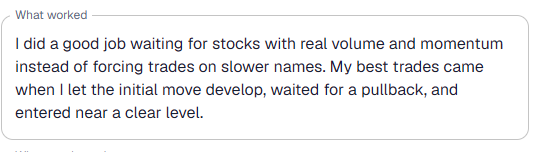
Full Session Notes view for one trading day What worked Session Note What needs work Session Note Technical recap Session Note Current focuses Session Note

Trading Journal FAQ

Questions you may want answers to

The best answers are inside the dashboard. Entry is free no credit card required.

What is a trading journal?

A trading journal is a record of your trades and the decisions around them. TradersLink connects executions, trades, tickers, notes, tags, trading rules, and session review so you can revisit both the result and how the trading day unfolded.

What can I record in the TradersLink trading journal?

You can record executions, completed trades, ticker-level details, daily results, trade notes, Trade Tags, Trading Rule Results, swing plans, and end-of-session notes. Calendar views keep those records organized by trading day and week.

Can I journal both day trades and swing trades?

Yes. TradersLink supports day and swing trades and is built with small cap trading in mind. Enter an execution (buy or sell) in the Daily Trade Tracker, and TradersLink will automatically detect whether it is an open trade and ask you to confirm it as an active swing trade.

Does TradersLink automatically check trading rules?

TradersLink automatically checks supported preset and custom session rules against the saved trading day. It shows whether each rule was followed or broken and keeps the result, trigger details, related trade, and available P&L context together.

Can I add trade notes and custom tags?

Yes. Notes stay attached to the trade they explain, and Trade Tags can cover setups, execution, exits, emotions, mistakes, or categories you create yourself. Those tags can later support filtering, comparison, and Analytics.

How can I enter or import trades?

You can enter day or swing executions manually, upload a broker statement, or map columns from another statement format. When a statement cannot be mapped directly, TradersLink can use AI-assisted mapping while keeping imported executions available for review.

Create your free TradersLink account.

Start building a trading record that keeps the day, the trades, and the decisions connected.

Sign up free

No credit card required.

TradersLink, living the small cap trading life!

Privacy PolicyTerms & Conditions

Analytics choices

We use necessary storage to remember this choice. Optional analytics help us understand visits and improve TradersLink. They stay off unless you accept.

Privacy Policy · Terms & Conditions